You can find the final code for this blog post on GitHub .
This is Part 2 of a multipart blog series on Creating the Netflix Logo Animation with Jetpack Compose and a Canvas. Check out other parts of the series below.
- Part 1 - Intro Animation
- Part 2 - Updating the Shadow
- Part 3 - Starting the Outro Animation (Upcoming)
Comparing Logos
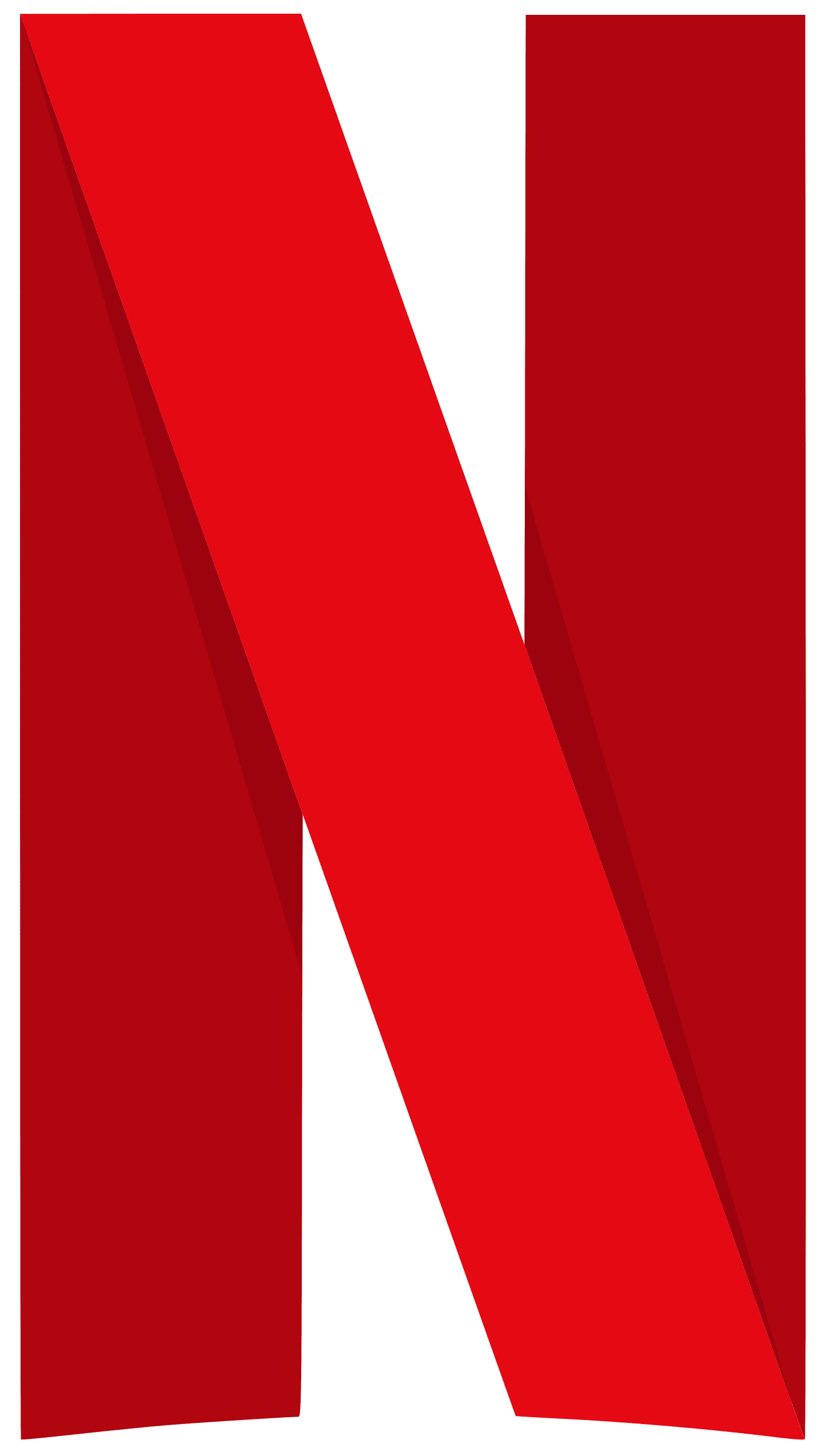
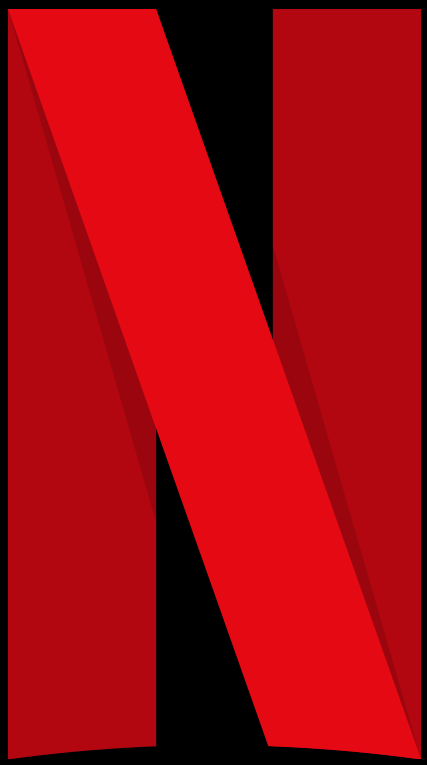
I found that Netflix provides branding instructions for its logo. I used an older version for the logo in part 1, primarily for the shadow’s simplicity. The most recent version of the logo has a gradient / blurred shadow effect that is a bit more natural.
| Netflix Official New | Netflix Official Old | From Blog Part 1 |
|---|---|---|
 |  |  |
Moving to the New Shadow
I’ve visually broken down the new approach we’re going to take to match the new shadow.
| Step | Result |
|---|---|
| 1. Drawing the shadow lines on either side of the second N stroke. | 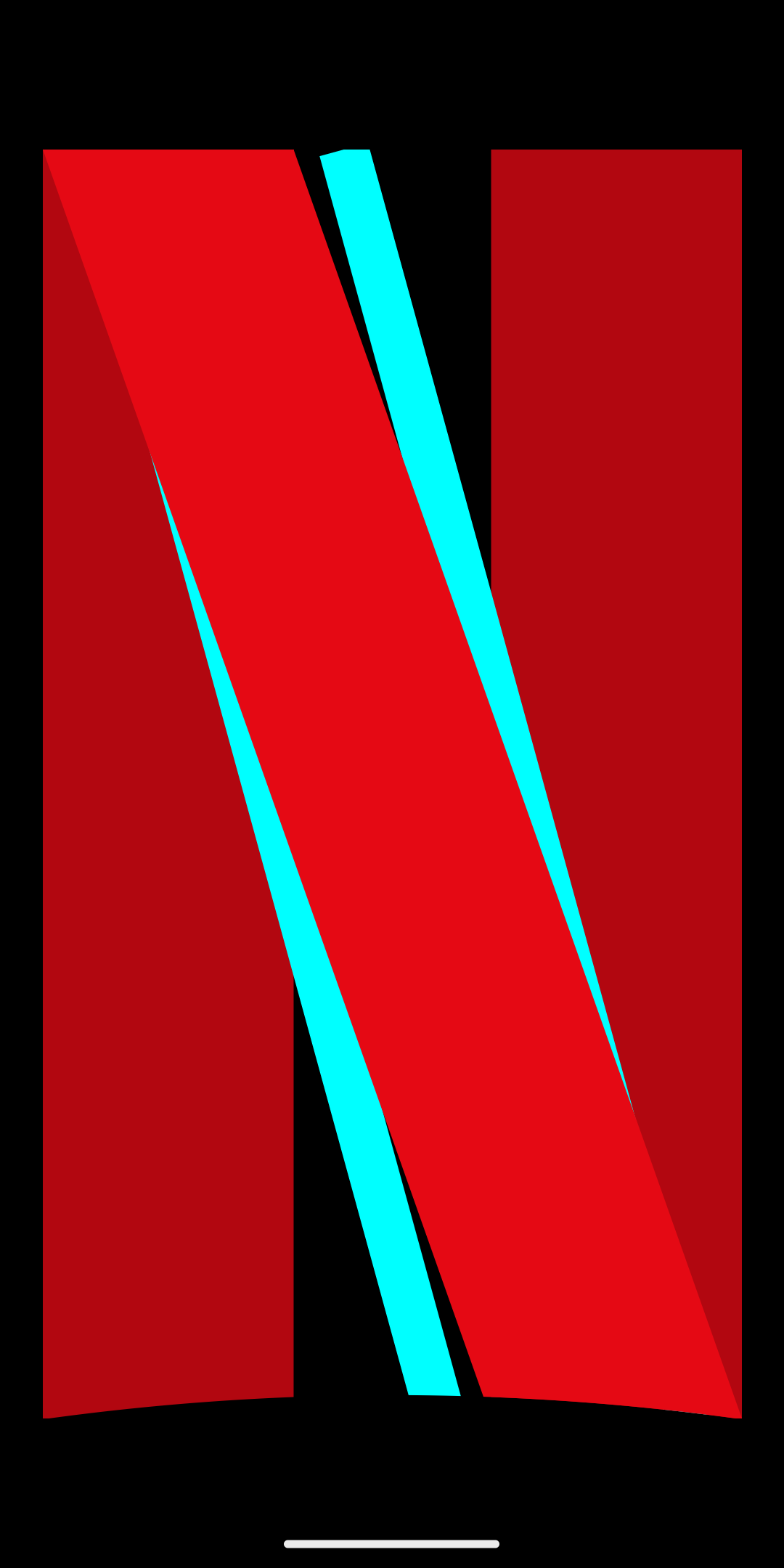 |
| 2. Add Blend Mode / Clipping, so that we only draw the shadow on our actual logo. | 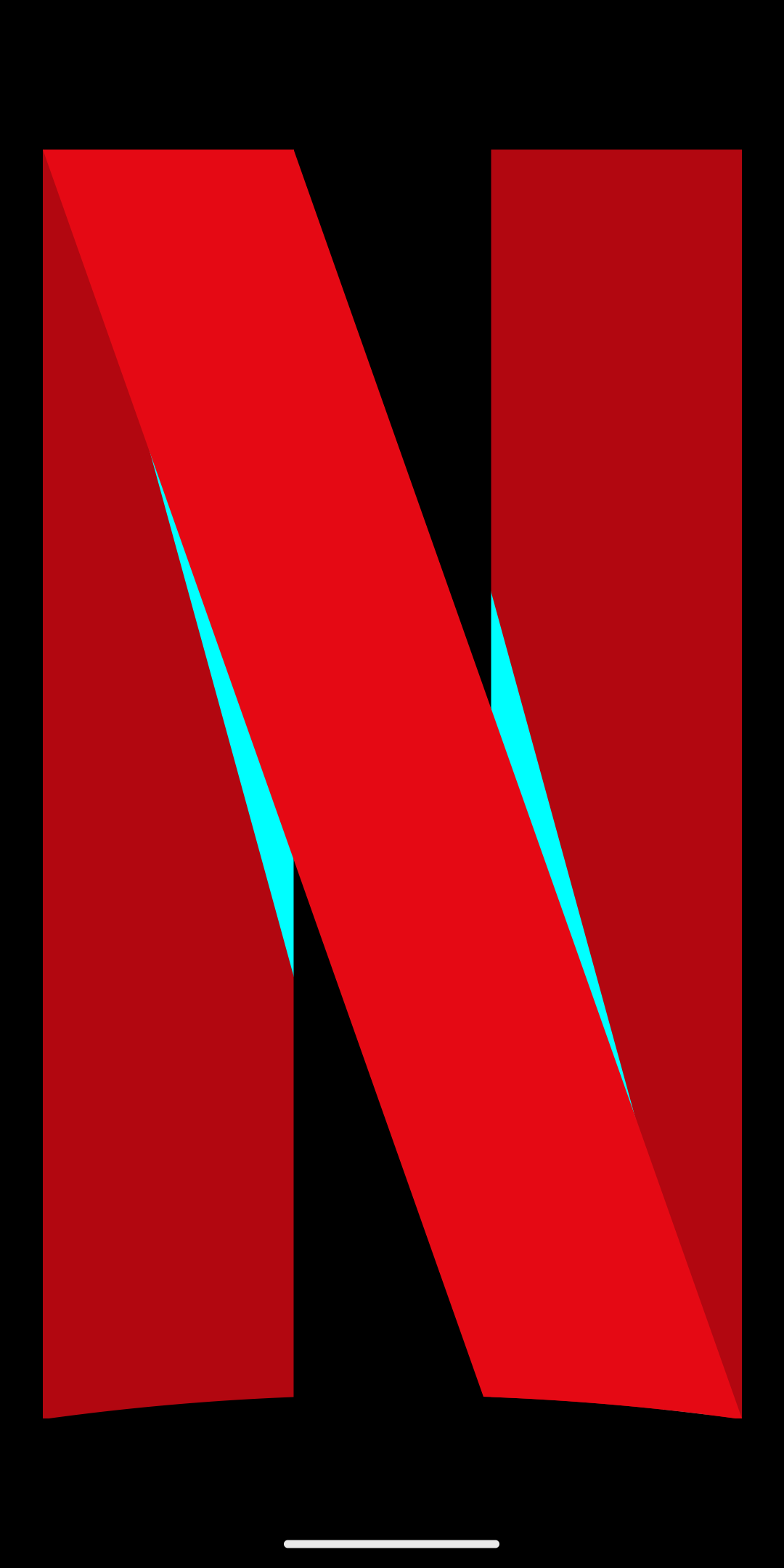 |
3. Add BlurMaskFilter to achieve a shadow-like effect. | 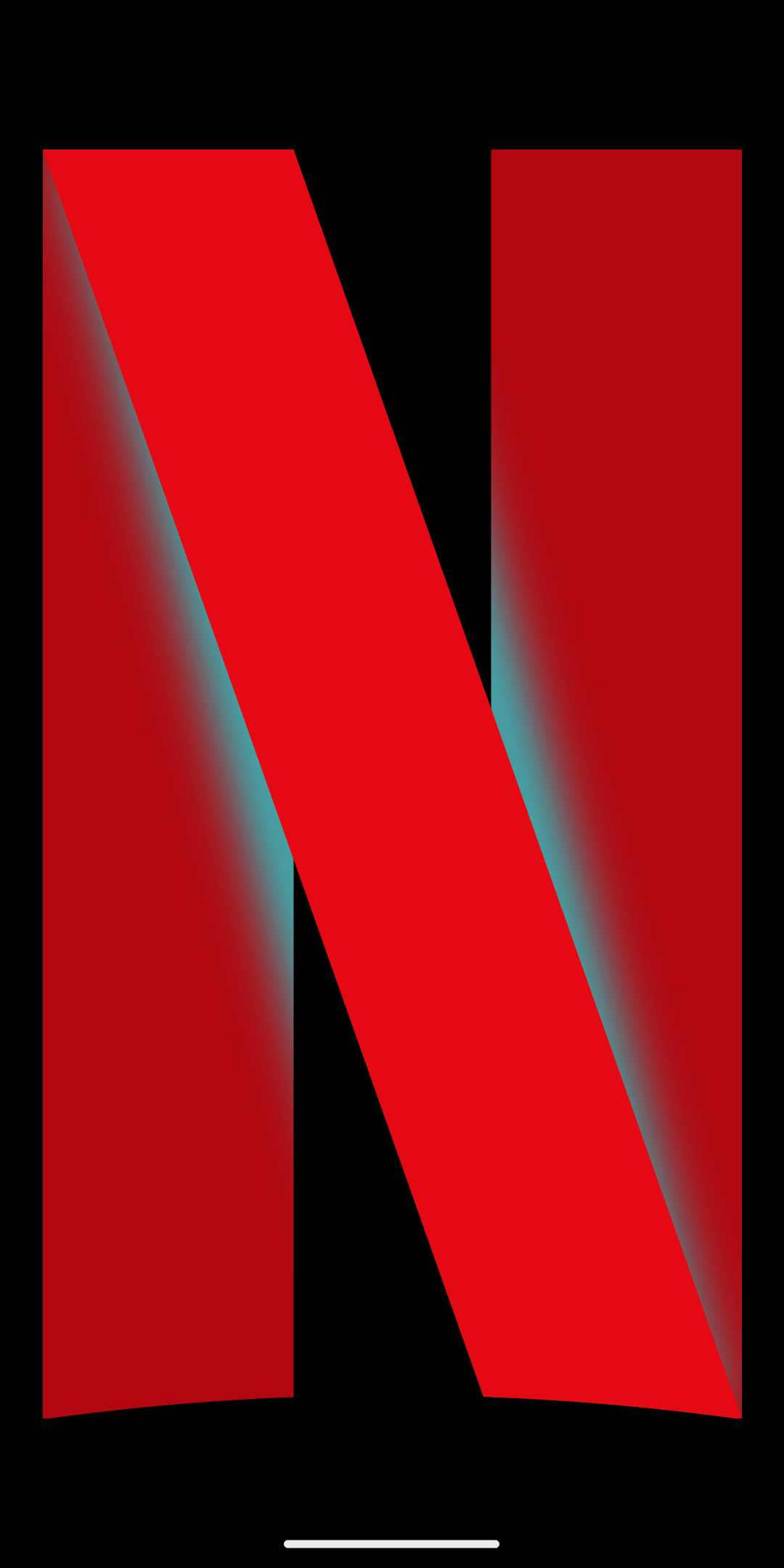 |
| 4. Dial in the values, and match the official shadow. | 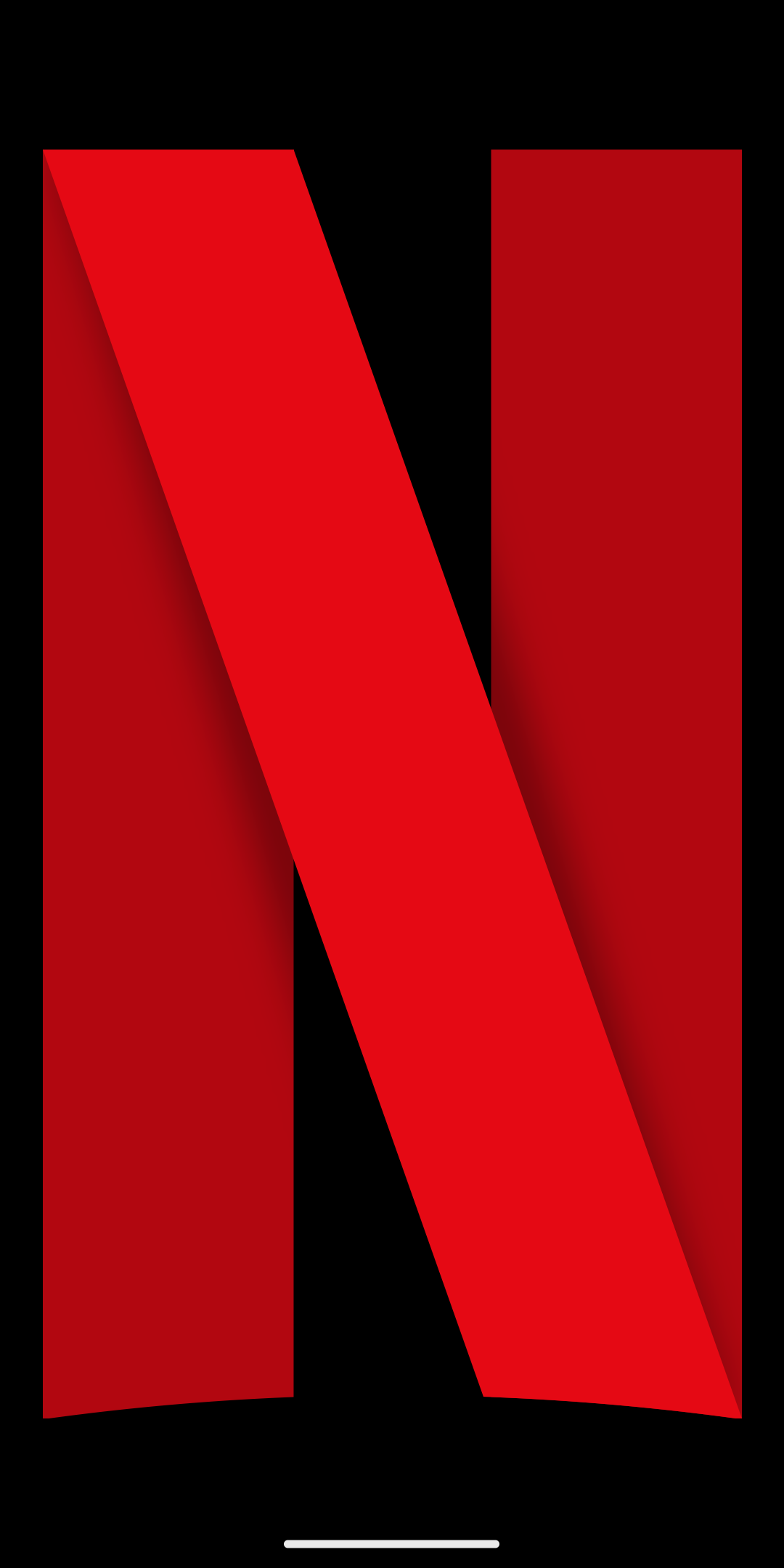 |
The Code
Let’s update our shadow code in the drawNetflixNStroke2 function.
In order to create the shadow effect, BlurMaskFilter is essential, but this isn’t available in the
general Compose platform-agnostic Canvas / Paint API. We have to access the Android specific
Paint by calling paint.asFrameworkPaint() which returns the Android specific
android.graphics.Paint, allowing us to use MaskFilters.
private val shadowPaint = Paint().apply {
    color = Color(0x66000000)
    blendMode = BlendMode.SrcAtop
    isAntiAlias = true
    style = PaintingStyle.Stroke
}
// Stroke 2 shadow
// - The blend mode only works if the calling DrawScope is being drawn in a separate
// layer, via the modifier call:
// graphicsLayer { compositingStrategy = CompositingStrategy.Offscreen }
drawIntoCanvas { canvas ->
// It's important that all of our moving values scale based on the size of the drawing.
// All of their values should be based on the strokeWidth.
val shadowXInset = strokeWidth * 0.15f
val shadowXOutset = strokeWidth * 0.15f
val shadowStrokeWidth = strokeWidth * 0.2f
val shadowBlurRadius = strokeWidth * 0.15f
shadowPaint.strokeWidth = shadowStrokeWidth
// BlurMaskFilter is read-only, so we need to set it every frame in case the blur radius has changed
shadowPaint.asFrameworkPaint().maskFilter =
BlurMaskFilter(shadowBlurRadius, BlurMaskFilter.Blur.NORMAL)
// Stroke 1 Shadow
run {
val bottomLeftX = 0f + ((size.width - strokeWidth - shadowXOutset) * drawPercent)
canvas.drawLine(
p1 = Offset(x = 0f + shadowXInset, y = 0f), // Top left
p2 = Offset(x = bottomLeftX, y = drawHeight), // Bottom left
paint = shadowPaint,
)
}
// Stroke 3 Shadow
run {
val topRight = Offset(x = strokeWidth + shadowXOutset, y = 0f)
val bottomRightX = topRight.x + ((size.width - topRight.x) * drawPercent) - shadowXInset
canvas.drawLine(
p1 = topRight,
p2 = Offset(x = bottomRightX, y = drawHeight),
paint = shadowPaint
)
}
}End Result
| Netflix Official | Final Result |
|---|---|
 | 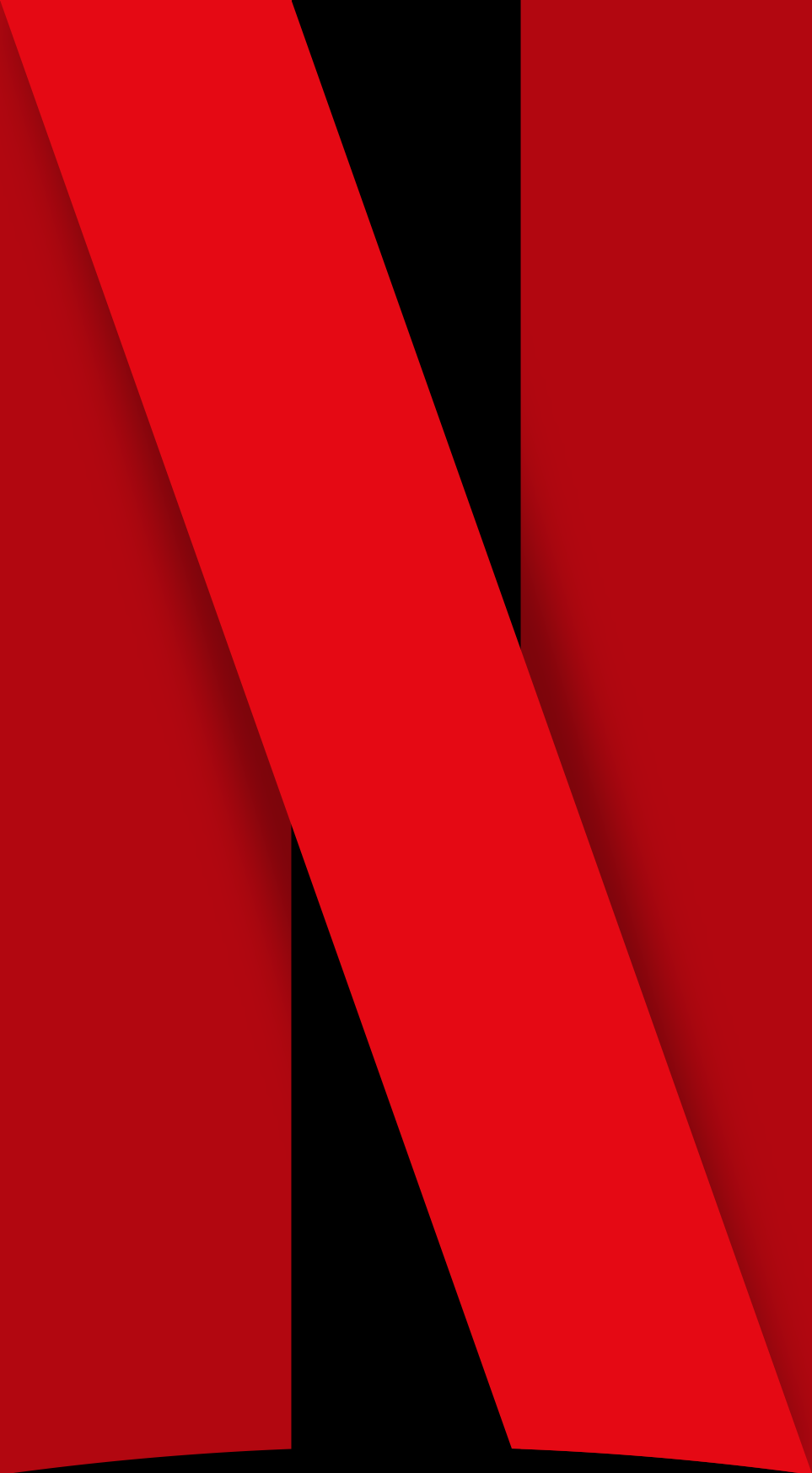 |
How Can We Match the Shadow Exactly?
While what we created is close, it’s not exact. I’ve reached the point that by dialing in one area, I weaken another. If we really wanted to perfect this, the best approach would be to have a designer export the shadow as a vector asset that we could overlay on strokes 1 and 3 before we draw stroke 2. If for some reason that wasn’t an option, we could use a RuntimeShader which would give us a bit more control, but that feels overkill for our current use case.
What’s next?
You can find the final code for this blog post on GitHub .
This is Part 2 of a multipart blog series on Creating the Netflix Logo Animation with Jetpack Compose and a Canvas. Check out other parts of the series below.
- Part 1 - Intro Animation
- Part 2 - Updating the Shadow
- Part 3 - Starting the Outro Animation (Upcoming)